# Group Management
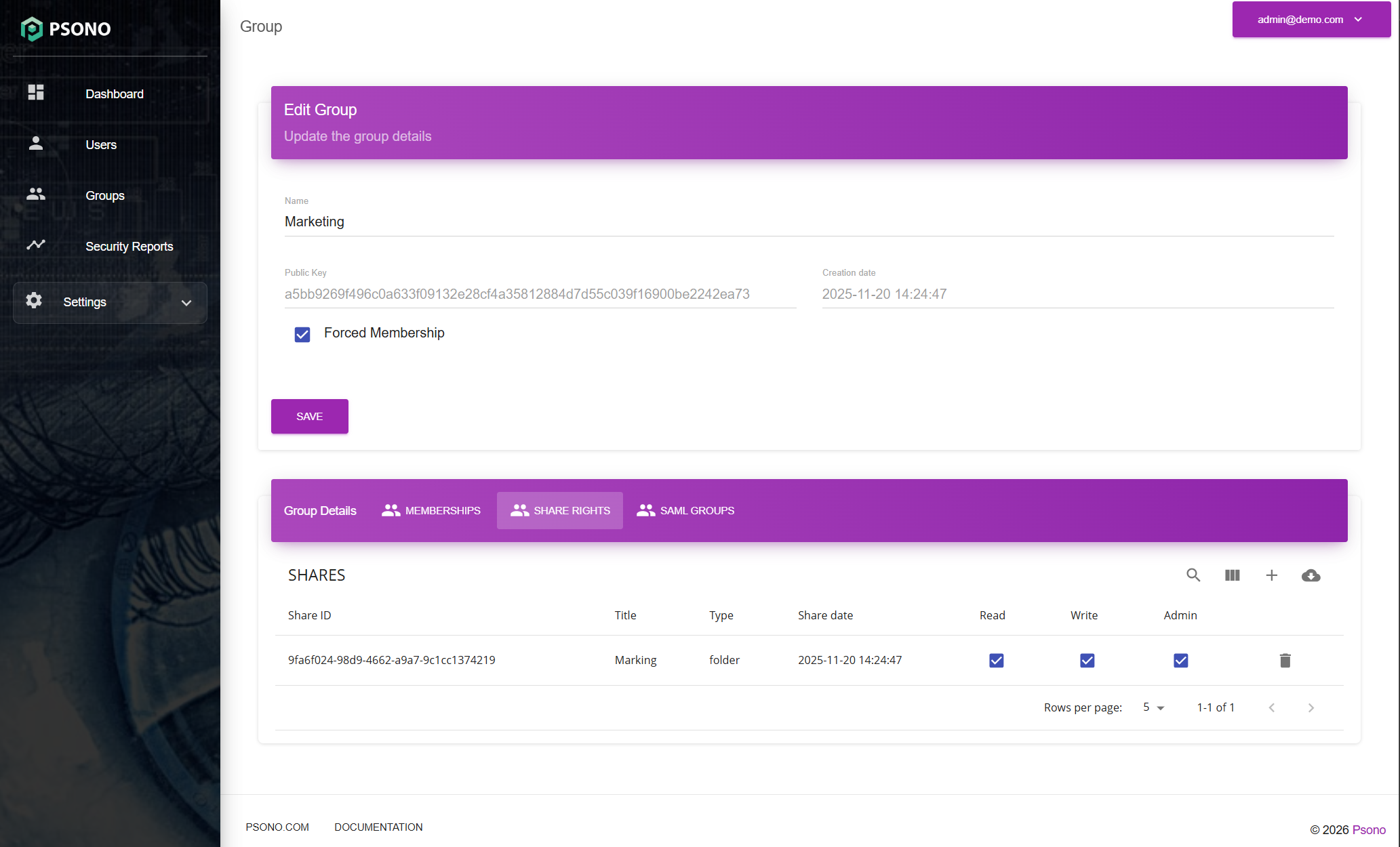
Groups let you share entries and folders with a set of users. The Admin Portal lets administrators inspect groups, update their settings, manage existing memberships, and adjust the group's share permissions.
# Requirements
Log in to the Admin Portal with a superuser account or an
administrative role that grants the relevant group-management capabilities.
The server must have MANAGEMENT_ENABLED enabled. The built-in Group Administrator role covers group viewing, updates,
membership management, and share-right management within the administrator's assigned scope.
Viewing and updating existing groups is available in both the Community Edition and the Enterprise Edition. Creating
managed groups through the Admin Portal, automatically creating their folders, and configuring Forced Membership
require the Enterprise Edition. The Admin Portal shows the group-creation button to superusers on Enterprise Edition
servers.
Groups created in the Admin Portal are managed groups. Groups created by users in the regular Psono client are
unmanaged groups. The group list's Managed column identifies the type. Users can create unmanaged groups by following
the group creation guide.
# Create A Managed Group
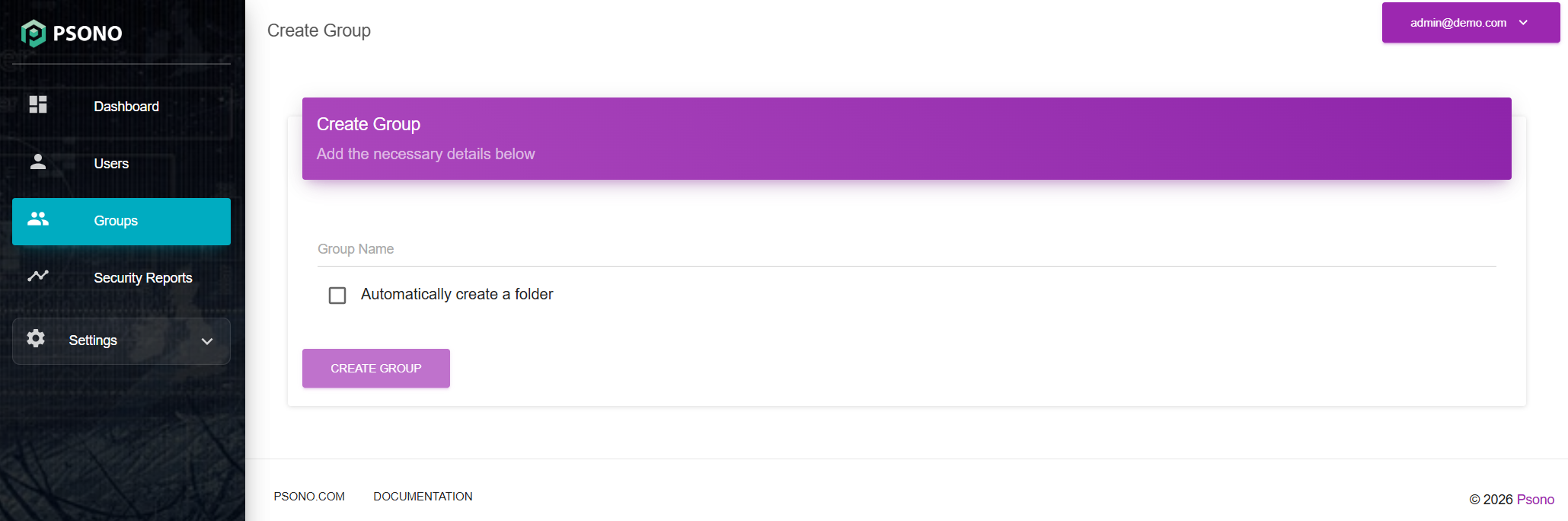
- Open
Groupsin the left menu. - Click the
+button (Create group). - Enter a
Group name, for exampleFinance. The name must contain at least three characters and must not contain@. - Choose whether to select
Automatically create a folder, as explained below. - Click
Create group. The portal opens the new group's details.
# Automatically Create A Folder
Selecting Automatically create a folder creates an empty shared folder with the same name as the group and immediately
shares it with that group. For example, creating the group Finance also creates a shared folder named Finance.
The group's initial permissions on this folder are:
| Permission | Meaning |
|---|---|
| Read | Members can view the shared folder and its contents. |
| Write | Members can add or change content in the shared folder. |
| Admin | Members can manage sharing permissions for this folder. |
You can adjust these permissions later on the group's Share rights tab. These folder permissions are separate from the
Group Admin and Share Admin membership permissions described below.
The checkbox creates one shared folder for the group, rather than a separate private folder for every member. Members can
add it to their datastore when accepting the group invitation; with Forced Membership enabled, this happens
automatically. A datastore is the user's vault structure containing their entries, folders, and links to shared content.
Leaving the checkbox cleared creates only the group. You can share an existing folder with it from the regular Psono
client, or create a new shared folder later using the + button on the group's Share rights tab when available.
Keeping team entries and subfolders inside one shared folder makes ongoing sharing simpler: members who already have access to that folder see new content inside it without accepting a separate invitation for each entry.
# Update A Group
- Open
Groupsand search for the group. - Click the pencil icon next to it.
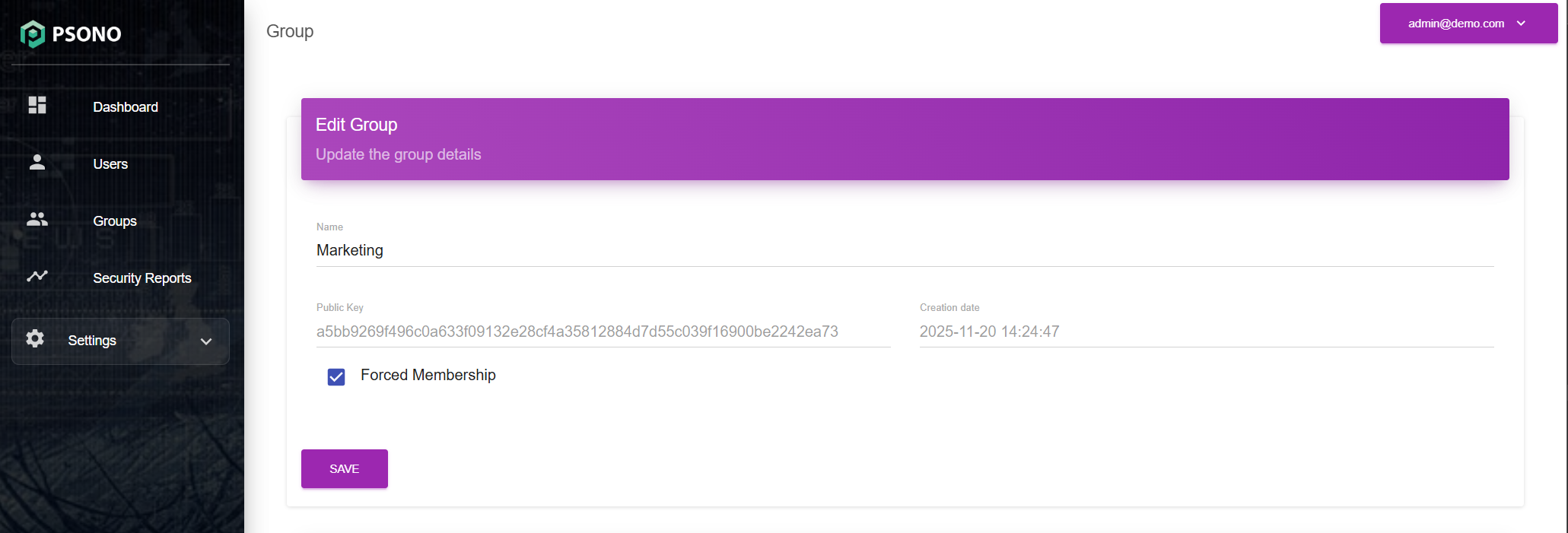
- Change the
Nameor, for a managed group, theForced Membershipsetting. - Click
Save.
Changing the group name does not rename a shared folder that was created with the group. Rename that folder separately in the regular Psono client if needed.
# Forced Membership
Forced Membership controls how users join a managed group. It is initially disabled for groups created through the
Admin Portal.
- Disabled: Users receive a group invitation that they can accept or decline. They can also leave the group later.
- Enabled: Psono clients automatically accept the group invitation and add the entries and folders shared with the group to the user's datastore. The user does not need to manually accept the invitation or add each shared item. Users cannot decline the invitation or leave the group themselves.
Enable this when assigned team members should automatically receive the team's shared content. For example, with
Automatically create a folder and Forced Membership both enabled, a user assigned to Finance automatically gets the
shared Finance folder in their datastore as their client processes the group invitation.
The setting applies to users assigned to the group; it does not add every user on the server to the group. Memberships still need to be assigned through invitations or identity-provider group mappings. Automatic acceptance takes place when the user's client processes pending group invitations, so an offline user will see the result after reconnecting and processing the invitation.
Forced membership does not change the group's Read, Write, or Admin permissions on its shares. Administrators can still
remove memberships through the Admin Portal. Clearing Forced Membership later allows users to decline pending
invitations or leave, but does not remove existing memberships or shared entries from their datastores.
# Manage Group Members
Open a group's details and select Memberships to see its assigned users. The table shows whether each membership has been
accepted and the user's Group Admin and Share Admin permissions.
| Membership permission | Meaning |
|---|---|
| Group Admin | Allows the member to invite or remove users and change their membership permissions in the regular client. |
| Share Admin | Allows the member to add or remove shares associated with the group. |
Toggle a member's Group Admin or Share Admin checkbox to update that permission. These changes are saved immediately.
Use the trash icon next to a membership to remove the user from this group. Removing a membership does not delete the
user's account. These actions require groups.memberships.manage.
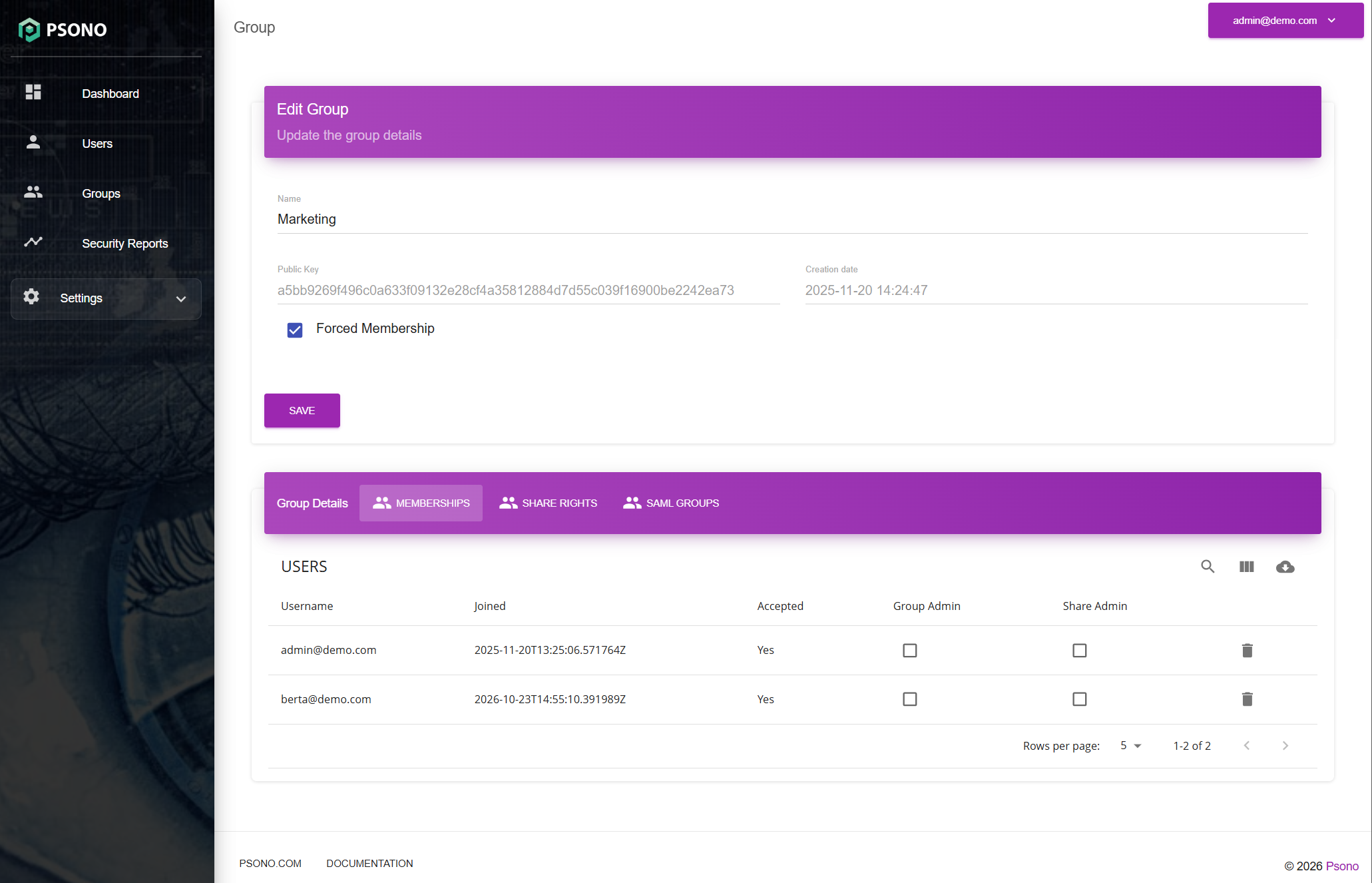
The Admin Portal's membership table manages existing memberships. For manual invitations, use the regular Psono client's group-management view with the necessary Group Admin permissions; see Adding users for the invitation workflow. For automatically assigned memberships in the Enterprise Edition, configure the relevant provider mapping:
For provider-managed memberships, change the assignment at the identity provider or its mapping as appropriate. Removing only the Psono membership can result in the provider assigning it again during a later synchronization or login.
Group membership permissions do not grant access to the Admin Portal. Administrative access is configured separately through administrative roles.
# Manage Shared Content
The Share rights tab lists folders and entries shared with the group. Use the Read, Write, and Admin checkboxes to
adjust the group's permissions on a share. These changes are saved immediately and require groups.shares.manage.
The trash icon removes the group's access to that share. It removes the share right, rather than deleting the underlying folder or entry. Users may still have access through another group or a direct share.