
# Configure Desktop App
The Psono desktop app can be configured manually by each user or centrally by administrators. Central configuration is useful if you want to preconfigure the server URL and disable manual server changes for managed devices.
The configuration value is the same config.json format that is used by the webclient.
# Configuration (manually)
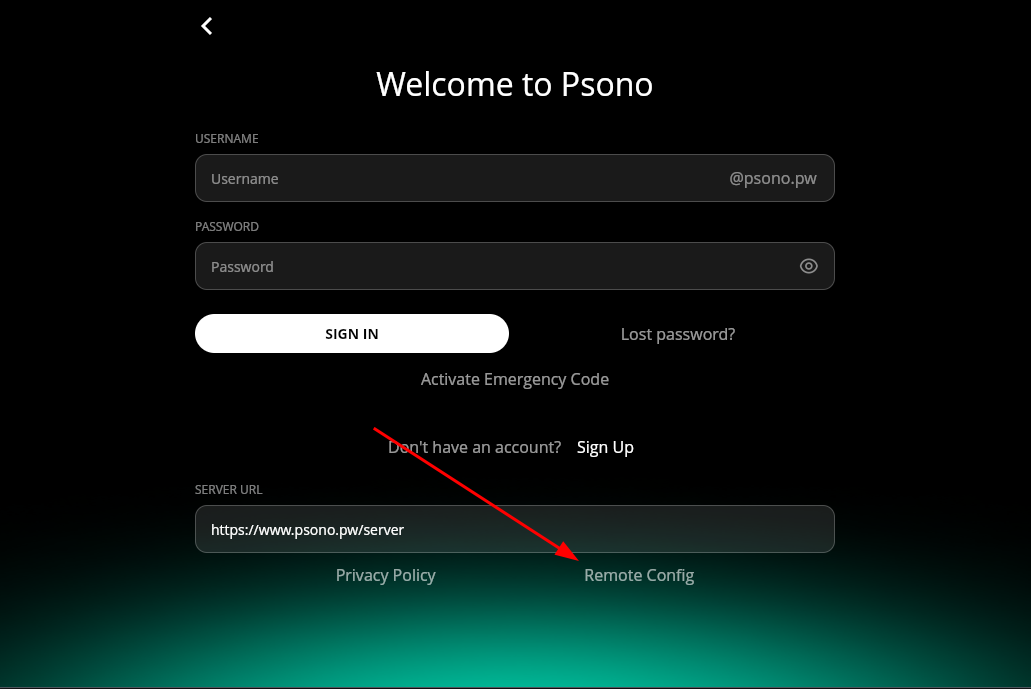
A user can manually configure the desktop app with the Remote Config feature.
The user enters the server address and starts Remote Config. The app connects to the server, asks for the WEBCLIENT_URL, then connects to the webclient and downloads the config.json.
# Configuration (with managed configuration)
As an alternative to manual configuration, administrators can configure the desktop app centrally.
| Platform | Source |
|---|---|
| macOS | Managed App Configuration provided by the MDM solution |
| Windows | Registry policy value |
| Linux | Configuration file |
Use the key ConfigJson and set its value to the JSON configuration.
Example:
{
  "backend_servers": [
    {
      "title": "Your Company",
      "url": "https://example.com/server"
    }
  ],
  "base_url": "https://example.com/",
  "allow_custom_server": false,
  "allow_registration": true,
  "allow_lost_password": true
}
Most MDM systems expect this as a string value under the ConfigJson key:
{
  "ConfigJson": "{\"backend_servers\":[{\"title\":\"Your Company\",\"url\":\"https://example.com/server\"}],\"base_url\":\"https://example.com/\",\"allow_custom_server\":false,\"allow_registration\":true,\"allow_lost_password\":true}"
}
The app also accepts the configuration keys directly if your MDM supports structured managed configuration dictionaries.
# Behavior
When a managed configuration is present, the app stores it as a managed configuration and uses the first entry in backend_servers as the server URL.
If the managed configuration is removed, the app removes the managed configuration from its local state. Users can then configure the app manually again.
# macOS
Configure the app through your MDM solution with Managed App Configuration.
Use:
| Key | Type | Value |
|---|---|---|
ConfigJson | String | Escaped JSON configuration |
# Windows
On Windows, the app reads the managed configuration from the registry at startup. The policy applies to all users of the app on the device.
Registry key:
HKLM\SOFTWARE\Policies\esaqa\Psono
Value:
| Name | Type | Value |
|---|---|---|
ConfigJson | REG_SZ | JSON configuration |
# Configuration with ADMX templates
Download the following template and language files:
To configure the app through Group Policy:
Copy
PSONO.admxto%WINDIR%\PolicyDefinitionsandPSONO.admlto%WINDIR%\PolicyDefinitions\en-USon the computer used to edit Group Policy. If your domain uses a Central Store, place the files in\\<domain>\SYSVOL\<domain>\Policies\PolicyDefinitionsand itsen-USsubdirectory instead.Edit the Group Policy Object applied to the target computers. Under Computer Configuration > Policies > Administrative Templates, navigate to PSONO > PSONO Desktop App. In the Local Group Policy Editor, use Computer Configuration > Administrative Templates.
Set ConfigJson for PSONO Desktop App to Enabled and enter your configuration as a single-line JSON object. For example:
{"backend_servers":[{"title":"Your Company","url":"https://example.com/server"}],"base_url":"https://example.com/","allow_custom_server":false,"allow_registration":true,"allow_lost_password":true}Paste the JSON object directly, without a
ConfigJsonwrapper or escaped quotation marks.Apply the policy to the target computers. After Group Policy has refreshed, fully quit and reopen the Psono app to load the configuration.
The template writes the ConfigJson value to the registry location shown above. It is a computer policy because the app reads from HKEY_LOCAL_MACHINE.
If the policy is removed and the registry value is no longer present, the app clears its cached managed configuration on its next startup.
For Microsoft Intune, see Configuration Windows with ADMX templates.
# Configuration with registry files or PowerShell
To automate this, you can put the following content into a psono.reg file and execute it:
Windows Registry Editor Version 5.00

[HKEY_LOCAL_MACHINE\SOFTWARE\Policies\esaqa\Psono]
"ConfigJson"="{\"backend_servers\":[{\"title\":\"Your Company\",\"url\":\"https://example.com/server\"}],\"base_url\":\"https://example.com/\",\"allow_custom_server\":false,\"allow_registration\":true,\"allow_lost_password\":true}"
Example PowerShell:
if ((Test-Path -LiteralPath "HKLM:\SOFTWARE\Policies\esaqa\Psono") -ne $true) {
  New-Item "HKLM:\SOFTWARE\Policies\esaqa\Psono" -Force -ea SilentlyContinue
}

New-ItemProperty `
  -LiteralPath "HKLM:\SOFTWARE\Policies\esaqa\Psono" `
  -Name "ConfigJson" `
  -Value '{"backend_servers":[{"title":"Your Company","url":"https://example.com/server"}],"base_url":"https://example.com/","allow_custom_server":false,"allow_registration":true,"allow_lost_password":true}' `
  -PropertyType String `
  -Force -ea SilentlyContinue
Fully quit and reopen the Psono app after changing the registry value.
# Linux
On Linux, the app reads the managed configuration from this file:
/etc/opt/psono/config.json
Example:
{
  "backend_servers": [
    {
      "title": "Your Company",
      "url": "https://example.com/server"
    }
  ],
  "base_url": "https://example.com/",
  "allow_custom_server": false,
  "allow_registration": true,
  "allow_lost_password": true
}