
# User Management
The Admin Portal lets administrators create accounts manually, update users, temporarily disable access, and delete accounts. These tasks are available in both the Community Edition and the Enterprise Edition.
# Requirements
Log in to the Admin Portal, normally at https://psono.example.com/portal/, with a superuser account or an
administrative role that grants the required user-management capabilities.
The server must have MANAGEMENT_ENABLED enabled. See
Finalize the installation for how to create the first superuser.
The built-in User Administrator role covers the user-management tasks below. A custom role needs users.read to view
users, users.create to create them, users.update to edit or deactivate them, and users.delete to delete them.
Administrators can only manage users within their assigned scope. See
Tenants and Delegated Administration for details.
# Find A User
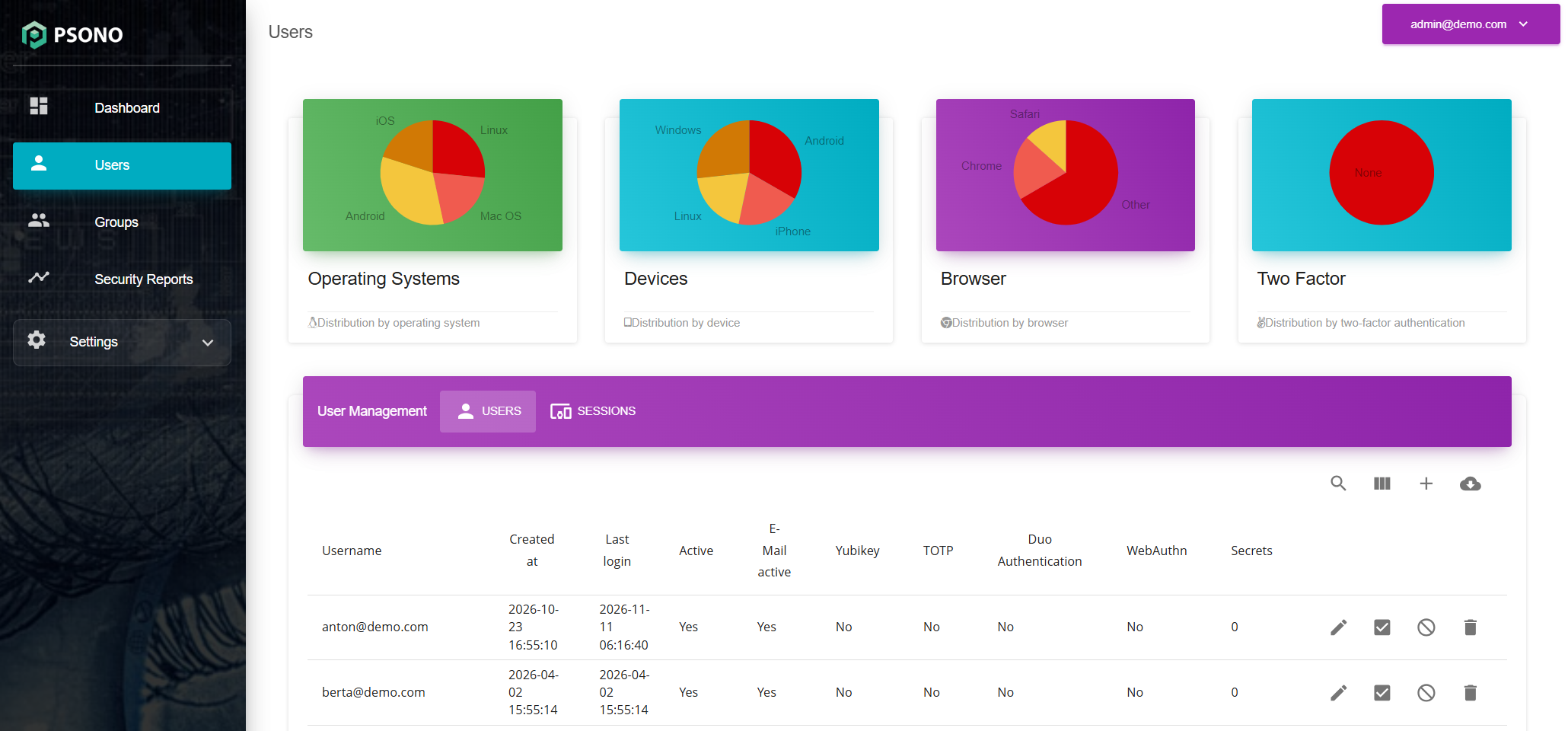
- Open
Usersin the left menu. - On the
Userstab, use the search field to find the account by username or its full email address. - Click the pencil icon next to the account to open its details.
# Create A User Manually
Manual creation is useful when an administrator should prepare an account instead of asking the user to register. It creates a local account that signs in with a Psono username and password.
- Open
Usersand click the+button (Create user). - Enter the account details:
Username: The login name in email-address format, for examplealice@example.com. Use the username domain configured for your installation. The username and contact email address can be different.Email: The user's contact email address. Both the username and the email address must be unique on the server.PasswordandPassword (repeat): Enter the initial password twice.Language: Select the user's language.Tenants, when shown: Select the administrative ownership scopes for the account. A tenant-scoped administrator must select at least one active tenant from their scope.
- Select
Require password changeif the user should choose a new password at their next login. - Click
Create user.
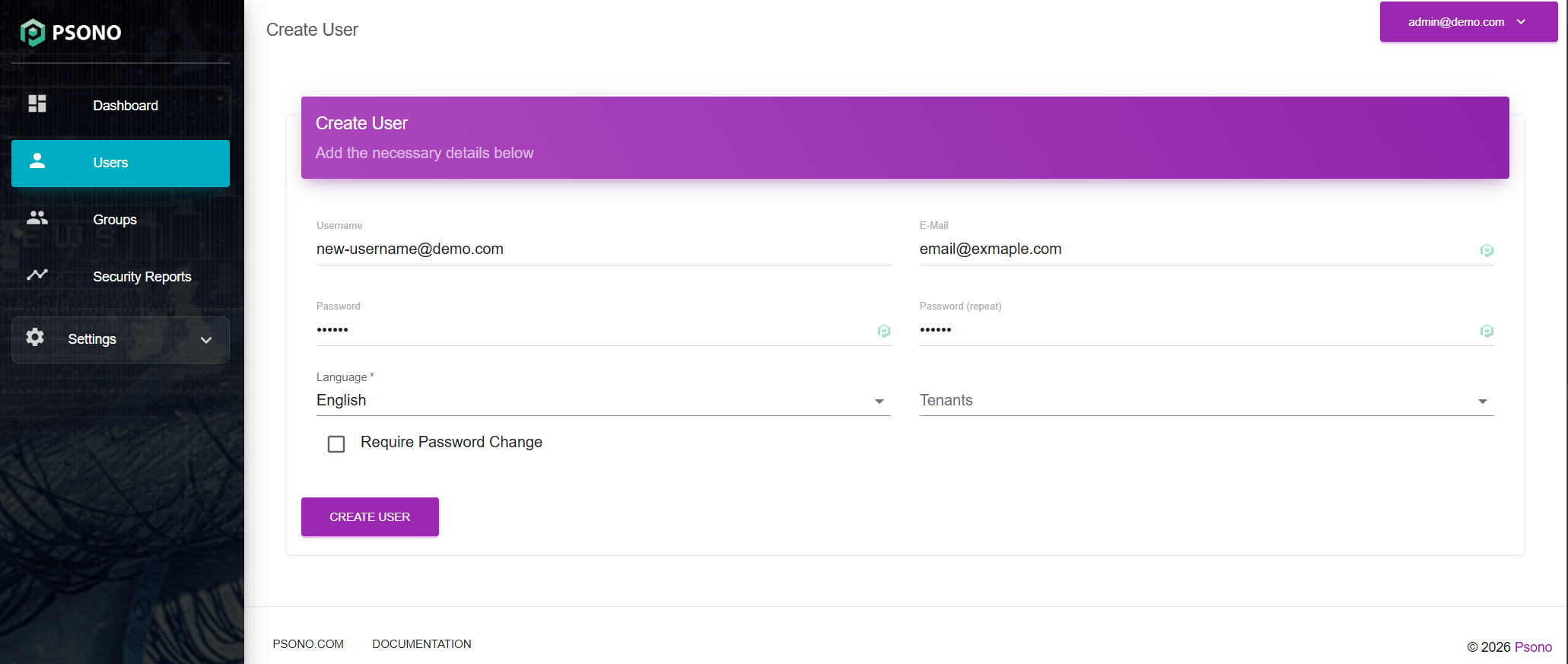
The account is created active with its email already marked as verified, so the user does not need to follow an email activation link. Manual creation does not send the user an invitation or their initial password. Give the user their username, initial password, and the URL of the regular Psono client through your usual onboarding process.
Creating an account does not assign it to any Psono groups or grant access to shared entries. Configure those separately as described in Group Management.
# Disable A User
Deactivation suspends the account while preserving its datastore, group memberships, and account settings.
- Open
Users, find the account, and click its pencil icon. - Clear the
Activecheckbox. - Click
Save.
You can also click the deactivate action directly in the user list. The list then shows No in the Active column.
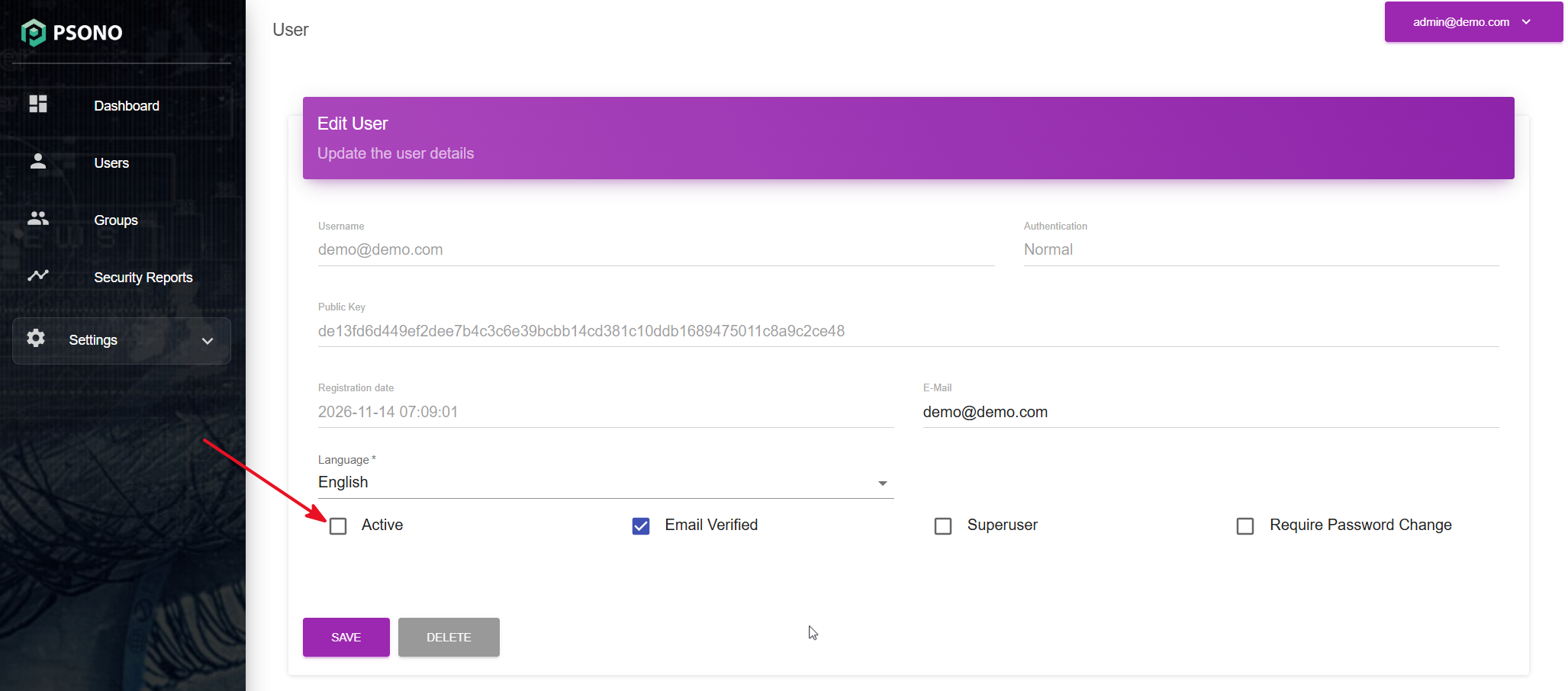
An inactive user cannot log in, and authenticated server requests through existing sessions are rejected while the account is inactive. All sessions of a user are cleared
# Reactivate A User
Open the user again, select Active, and click Save, or use the activate action in the user list. The user can then sign
in again with their existing credentials, subject to the account's other authentication requirements.
# Delete A User
Deletion permanently removes the account, its datastores, sessions, and group memberships. It cannot be undone through the Admin Portal. Use deactivation when the account may be needed again.
- Open
Usersand locate the account. - Click the trash icon next to the user, or open the user and click
Delete. - Confirm the deletion in the dialog.
- Verify that the account no longer appears in the user list.
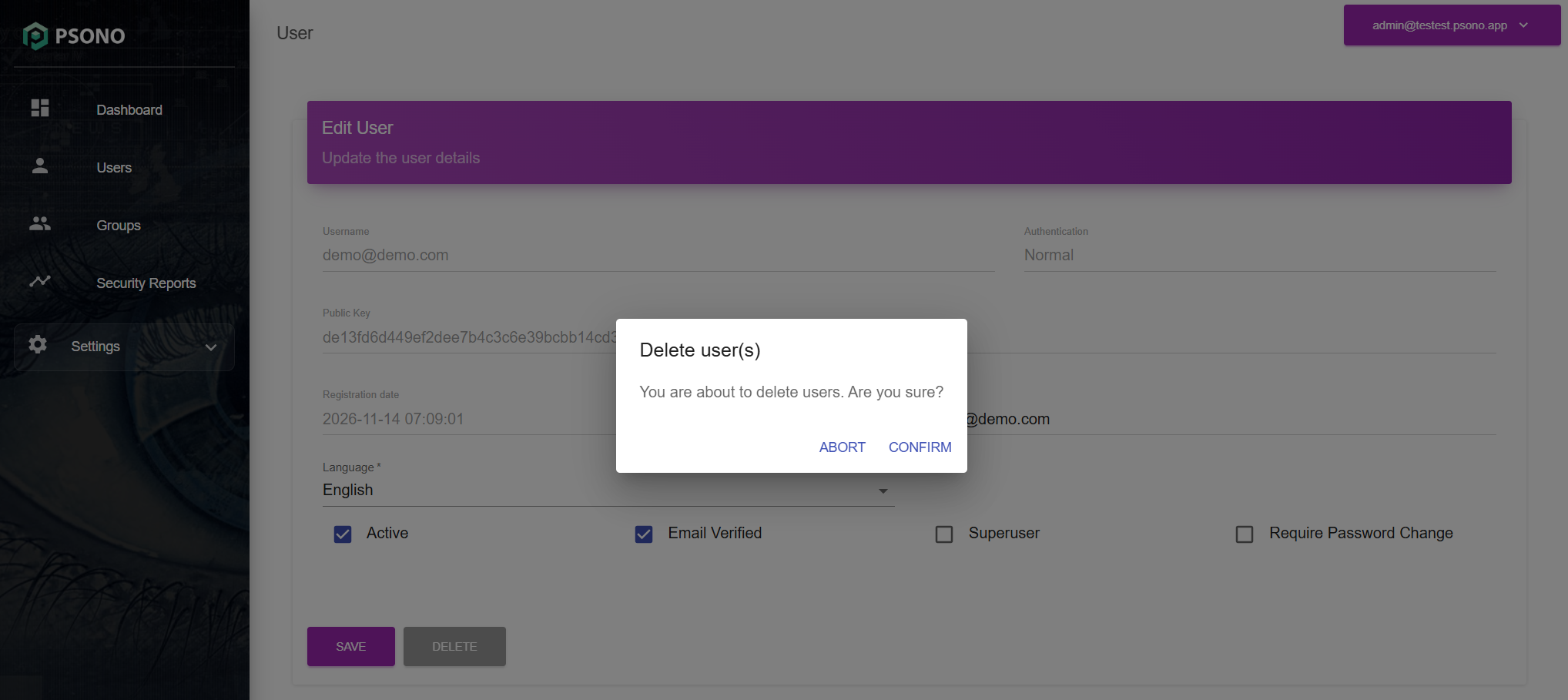
Deleting a user does not transfer their private entries to an administrator or another user. Entries that were properly shared remain accessible to other users through their own share permissions. Arrange access to any entries that need to be retained before deleting the account.
If a delegated administrator deletes a user owned by multiple tenants, the portal asks for an additional confirmation. Deletion removes the account for all owning tenants; it does not just remove one tenant membership.