
# Password Generator
Psono can generate random passwords and memorable passphrases when you create or edit an entry. You can adjust the generator for an individual entry and save your preferred defaults in the settings.
# Generate a password
Log in to the webclient and create an entry or open an existing entry for editing.
Click on the menu icon at the right of the Password field and select Generate password.
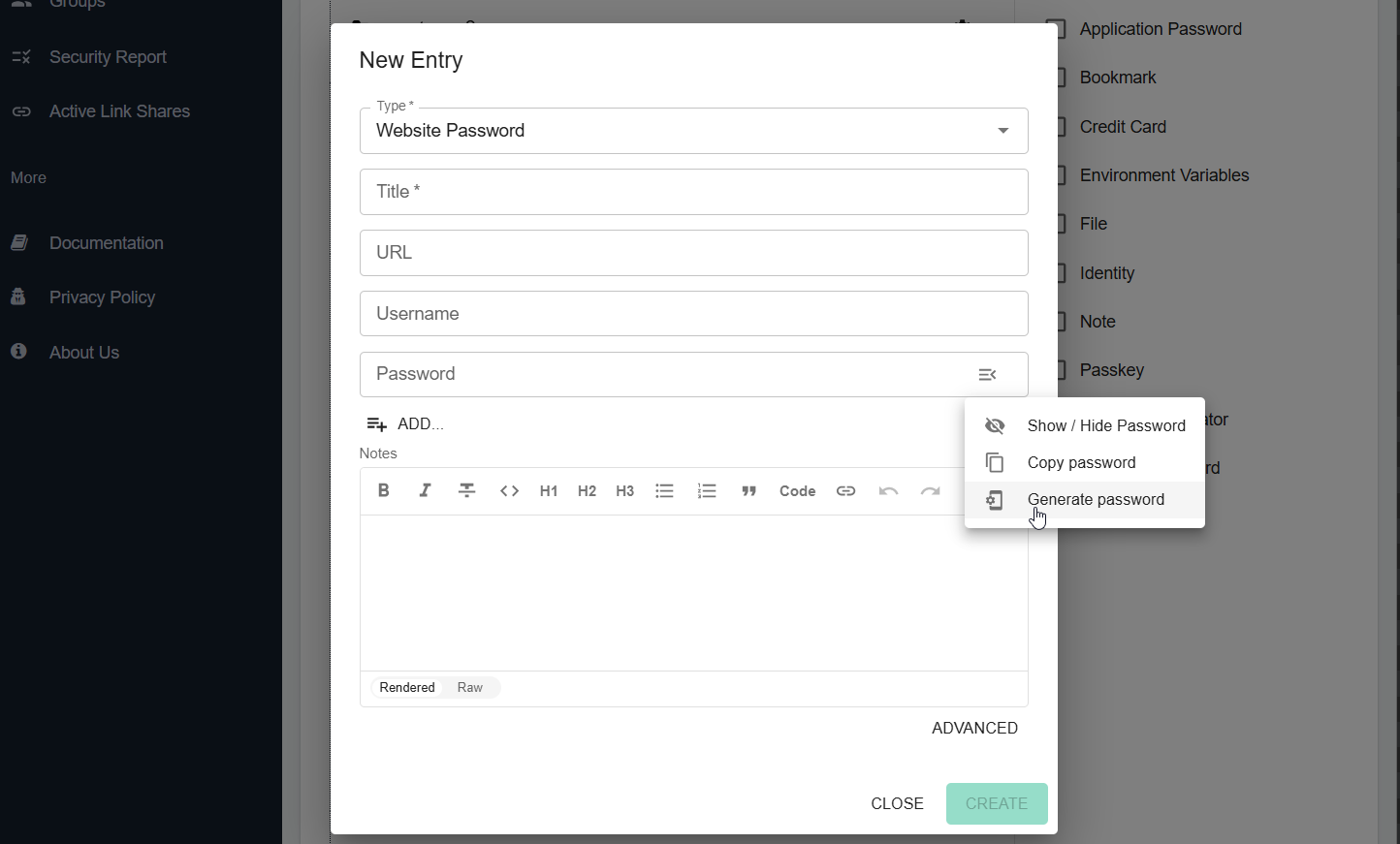
In the Generator dropdown, select Password Generator.
Psono generates a password automatically. Adjust Password length and choose which character types to include: Uppercase letters, Lowercase letters, Numbers, and Special Characters. Keep at least one character type enabled. Changing these options generates a new password.
Click on the circular arrow at the right of the generated password to generate another password with the same options.
Below the password, Psono displays its estimated strength and entropy in bits. Increasing the length generally increases the strength. If you edit the generated password manually, the generator's entropy estimate no longer applies.
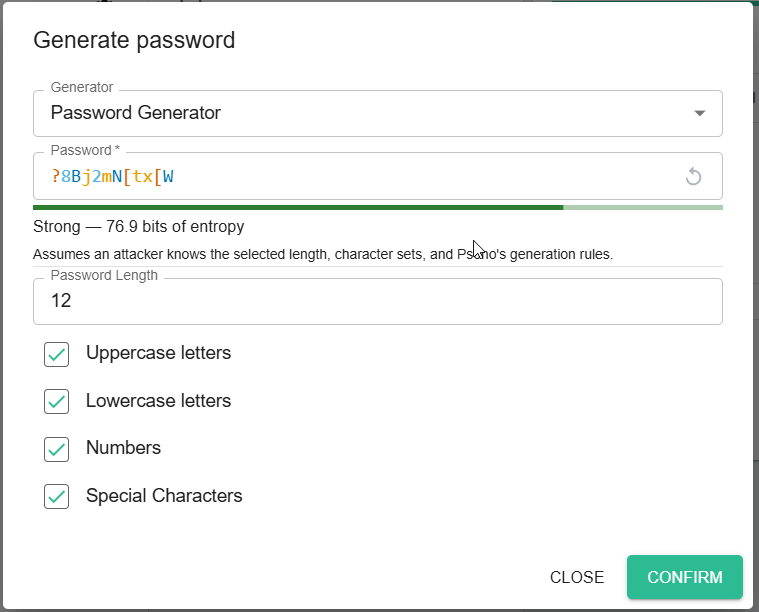
Click Confirm to insert the generated password into the entry, then save the entry.
# Generate a passphrase
Open the generator from the Password field menu as described above.
In the Generator dropdown, select Passphrase Generator.
Set Number of words to a whole number between 2 and 128, and select a Wordlist language.
Psono builds the passphrase from randomly selected words, separated by hyphens, with random capitalization and numbers. Changing the word count or wordlist language generates a new passphrase. More words generally increase the strength.
Click on the circular arrow to generate another passphrase with the same options.
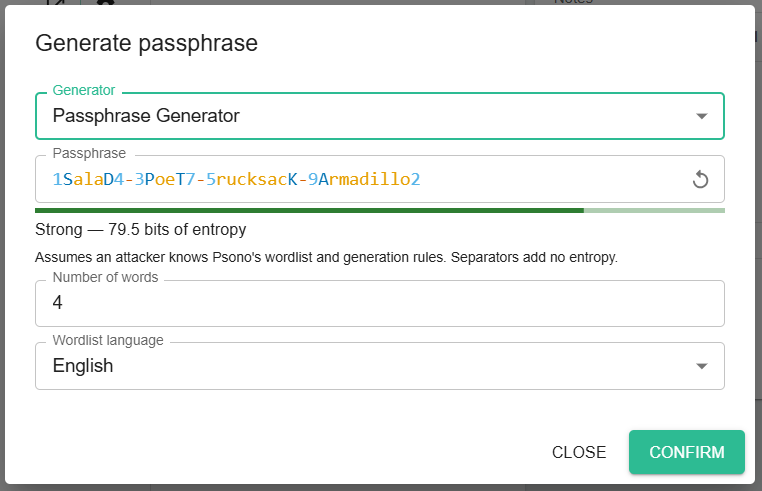
Click Confirm to insert the passphrase into the entry's password field, then save the entry.
# Configure generator defaults
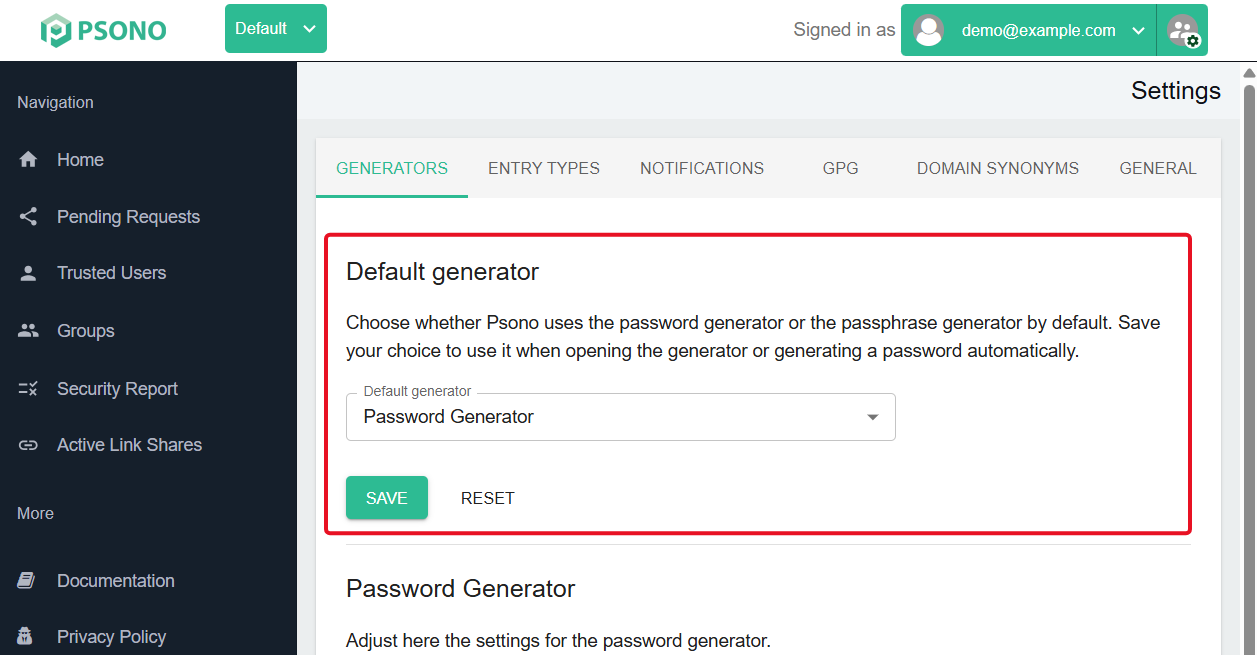
Click on your username at the top right, select Settings, and open the Generators tab.
# Default generator
Under Default password generator, choose Password Generator or Passphrase Generator, then click Save in that section. This choice determines which generator opens by default and which generator Psono uses when generating a password automatically.
Click Reset in this section to switch the default back to Password Generator.
# Password defaults
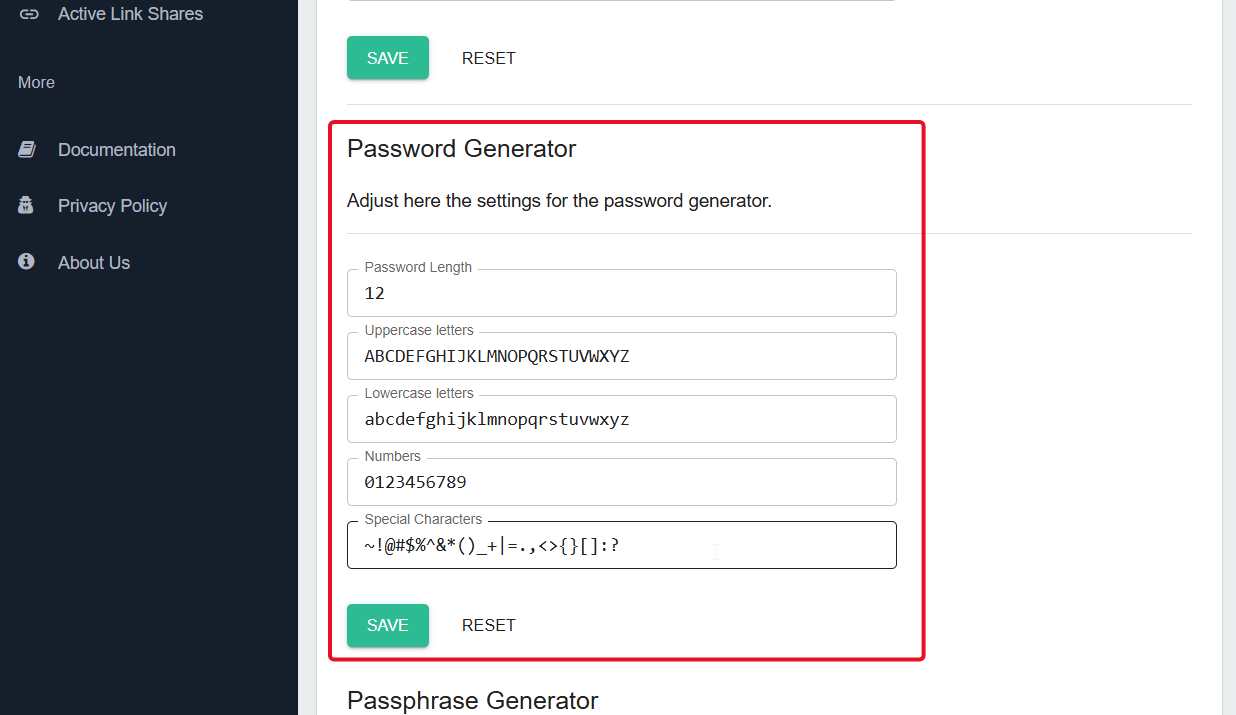
Under Password Generator, configure the following fields:
| Field | Description |
|---|---|
| Password length | The number of characters to generate. |
| Uppercase letters | The uppercase characters the generator may use. |
| Lowercase letters | The lowercase characters the generator may use. |
| Numbers | The digits the generator may use. |
| Special Characters | The special characters the generator may use. |
The character fields contain the actual allowed characters. For example, remove a symbol from Special Characters if a website does not accept it. Leave a character field empty to exclude that character type. The length must be greater than zero, and at least one character field must contain characters.
Click Save in this section to store your password defaults. Click Reset to restore the default password length and character sets, including any defaults configured by your administrator.
TIP
Administrators can preconfigure these parameters with compliance settings in the settings.yaml or policies in the admin portal.
# Passphrase defaults
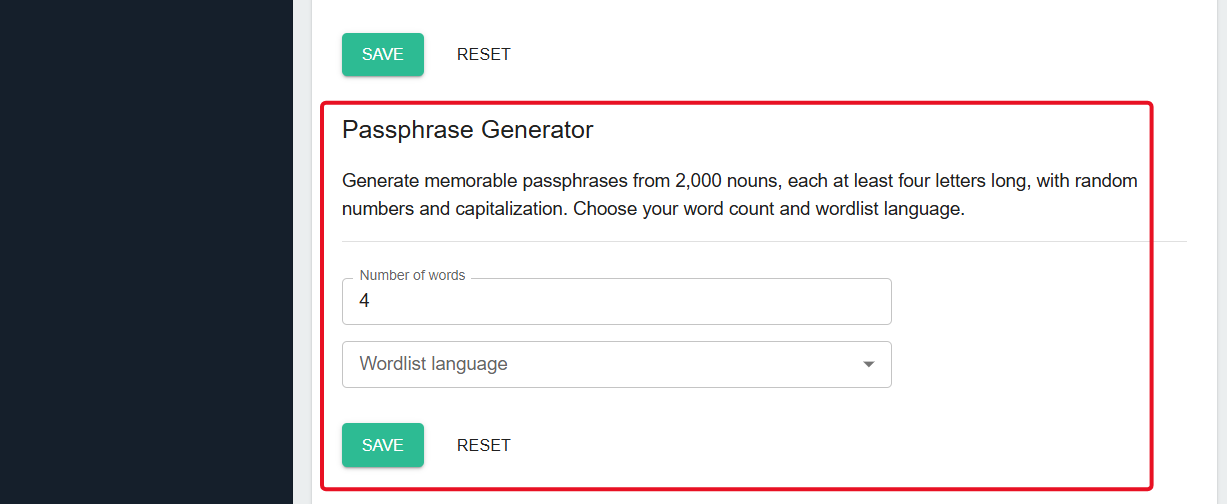
Under Passphrase Generator, configure Number of words and Wordlist language, then click Save in that section.
Choose a specific wordlist language or select Use frontend language (English if unavailable) to follow your interface language. If no wordlist exists for your interface language, Psono uses English. A specific wordlist selection remains independent of the interface language.
Click Reset to restore the default word count and use the frontend language again. The default word count is 4 unless your administrator has configured a different default.
Changes made inside a generator dialog apply to that generation session. To change the defaults for future use, save them under Settings → Generators. Each settings section has its own Save and Reset buttons.
TIP
Administrators can preconfigure these parameters with compliance settings in the settings.yaml or policies in the admin portal.